Account Setup & Onboarding
Step 1: Create Your Account
Go to app.clearpath-grc.com and click Get Started. Enter your email address and create a password.
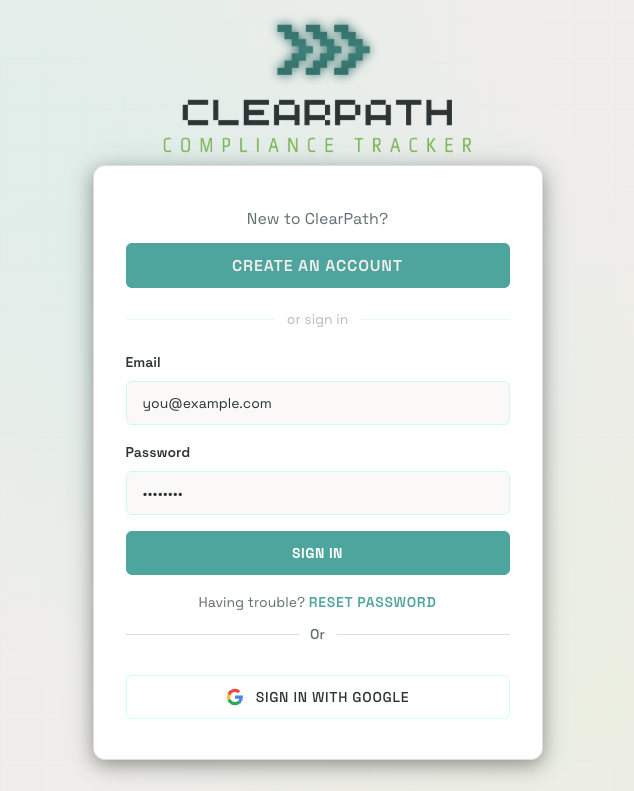
You'll receive a confirmation email. Click the link to verify your address before logging in.
Step 2: Company Profile Setup
On first login, ClearPath walks you through a 4-section onboarding survey. The first section is Company Foundation.
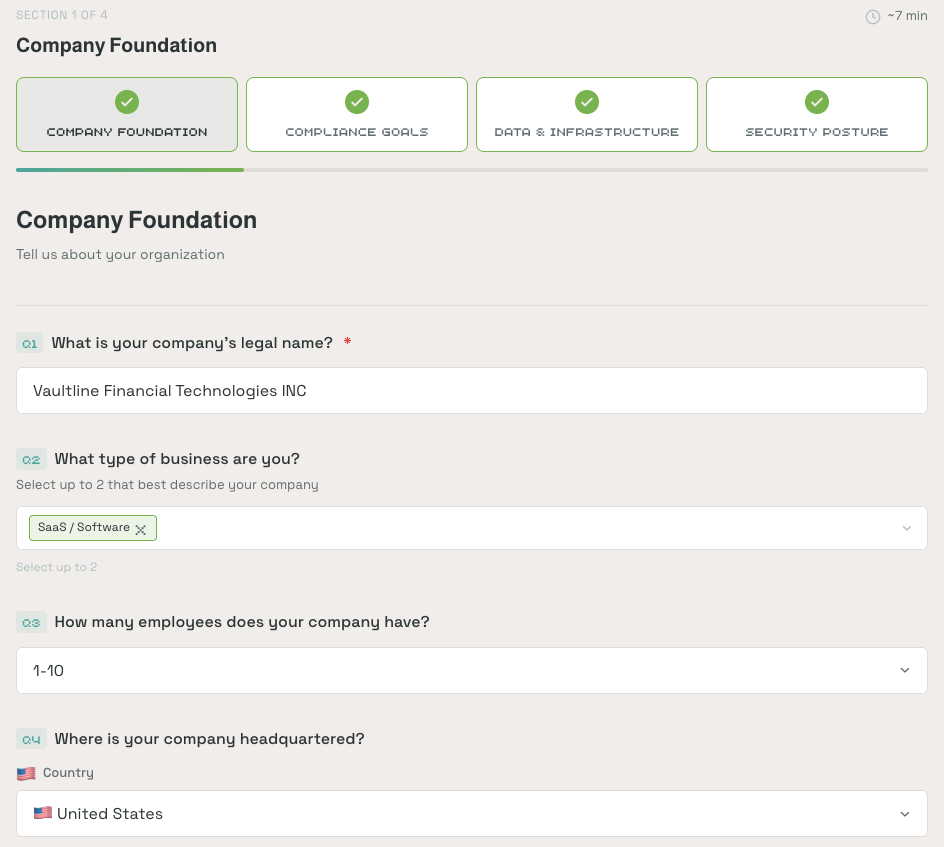
Fill in:
- Company legal name
- Type of business (e.g., SaaS / Software, FinTech, Healthcare) -- select up to 2
- Number of employees
- Headquarters location
The remaining sections cover Compliance Goals, Data & Infrastructure, and Security Posture. The whole survey takes about 7 minutes.
This information shapes how ClearPath scopes controls for your organization. A 5-person SaaS startup has different obligations than a 200-person company handling payment data. The more accurate your answers, the better the guidance.
Step 3: Choose Your Frameworks
During onboarding, ClearPath's Compliance Goals section will ask which frameworks you're working toward. After setup, you can manage active frameworks anytime from the Framework Management page.
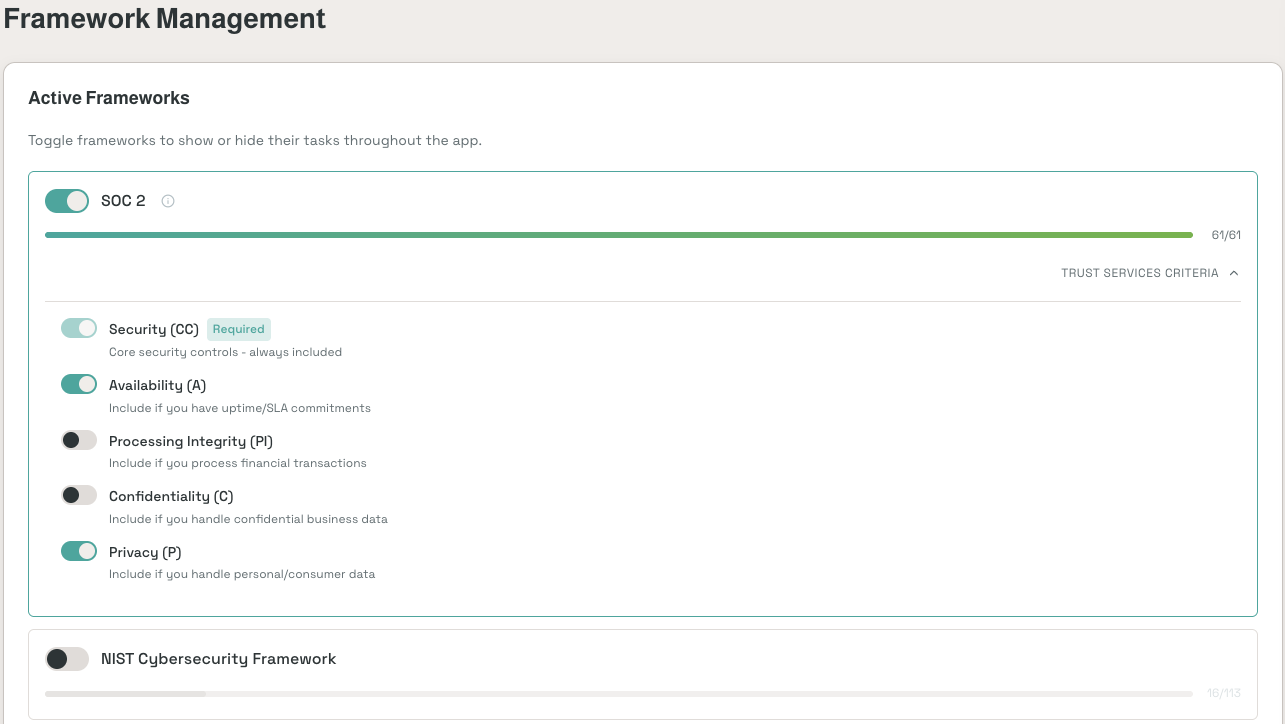
Available frameworks:
- SOC 2 -- Most common for B2B SaaS companies selling to U.S. enterprise customers. Includes Trust Services Criteria sub-categories (Security, Availability, Confidentiality, Processing Integrity, Privacy) that you can toggle based on your business.
- NIST Cybersecurity Framework -- Best for organizations benchmarking their security posture
- ISO 27001 -- International standard, preferred for global expansion
- PCI DSS -- Required if you handle payment card data
Toggle frameworks on or off at any time. Active frameworks show their controls and progress throughout the app. Each framework's progress bar shows how many controls you've completed.
Step 4: You're In -- Your Home Screen
Once onboarding is complete, you'll land on the Home screen. This shows your Compliance Journey -- the guided sequence of stages you'll work through to build your compliance program.
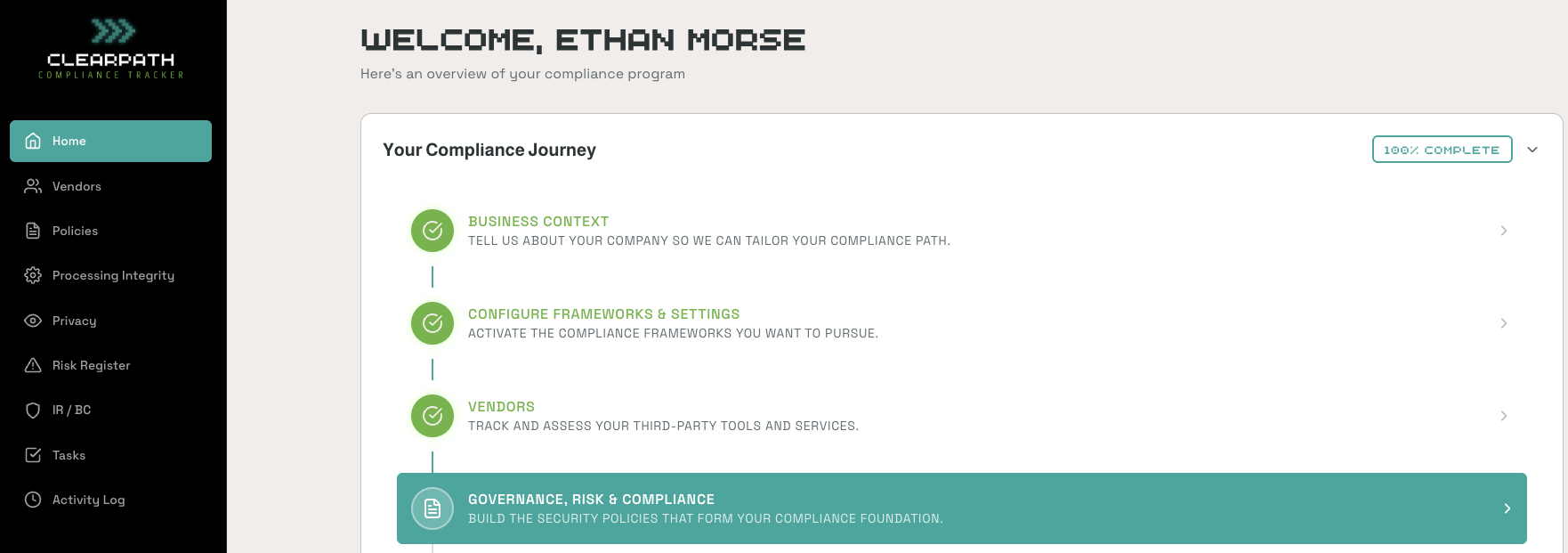
Your Journey is broken into stages that build on each other. Completed stages show a green checkmark. The currently active stage is highlighted -- click it to begin. The left sidebar gives you quick access to individual sections like Vendors, Policies, Risk Register, and Tasks.
Next step: Click your active Journey stage to start your first compliance activity.